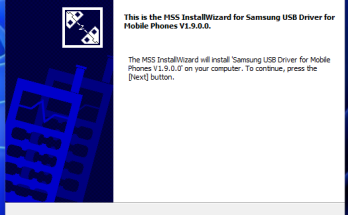
Minimal ADB and Fastboot Tool is a lightweight Windows utility that allows users to communicate with Android devices using ADB (Android Debug Bridge) and Fastboot commands.
Instead of installing the full Android development environment, this tool provides the essential files needed to run ADB and Fastboot commands from a simple command prompt window.
Because of its small size and easy setup, it is widely used by:
- Android developers
- Mobile repair technicians
- Advanced Android users
- Firmware flashing technicians
The software makes it easy to send commands from a computer to an Android phone or tablet for tasks such as debugging, troubleshooting, file transfers, and system testing.
Table of Contents
What is Minimal ADB and Fastboot Tool?
Minimal ADB and Fastboot Tool is a simplified command-line package for Windows that includes the core Android communication utilities:
- ADB (Android Debug Bridge)
- Fastboot
These tools allow a computer to interact directly with an Android device through USB.
ADB works while the device is powered on, while Fastboot works when the device is in bootloader or fastboot mode.
Instead of installing the complete Android SDK (which is large and complex), this tool provides a faster way to access these essential utilities.
Key Features of Minimal ADB and Fastboot Tool
Lightweight and Fast Installation
The software package is small in size and installs within seconds on a Windows computer.
ADB Command Support
Users can run a wide range of ADB commands to interact with Android devices while they are running normally.
Fastboot Mode Communication
The tool allows command execution when the device is in Fastboot or Bootloader mode.
Dedicated Command Window
The installer creates a Minimal ADB command prompt, making it easier to run commands.
Device Detection
The tool can detect Android devices connected via USB and confirm communication.
Useful for Android Development
Developers use the tool for debugging applications and testing device functions.
Why Use Minimal ADB and Fastboot Tool?
Many Android utilities require ADB communication, but installing the full Android SDK can be unnecessary for simple tasks.
Minimal ADB and Fastboot Tool provides several advantages:
- Small installation size
- Quick setup process
- Easy command-line access
- No need for full Android SDK
- Useful for device diagnostics and testing
This makes it a popular tool for technicians and Android power users.
Supported Android Devices
Minimal ADB and Fastboot Tool supports almost all Android smartphones and tablets, including devices from:
- Samsung
- Xiaomi
- OnePlus
- Google Pixel
- Oppo
- Vivo
- Motorola
- Realme
- Sony
It works with devices running Android 4.0 and newer versions.
Supported Windows Versions
The tool is compatible with most Windows operating systems:
- Windows 11
- Windows 10
- Windows 8 / 8.1
- Windows 7
Both 32-bit and 64-bit systems are supported.
Download Minimal ADB and Fastboot Tool
File Information
- File Name: Minimal_ADB_Fastboot_Setup.exe
- File Size: ~2 MB
- Developer: Android Tools Community
- Compatibility: Windows 7 / 8 / 10 / 11
Download Minimal ADB and Fastboot Tool (Latest Version)
(Add your download button here to increase click-through and ad impressions.)
How to Install Minimal ADB and Fastboot Tool (Step-by-Step Guide)
Installing Minimal ADB and Fastboot Tool on a Windows computer is simple and takes only a few minutes. Follow the steps below to set up the tool correctly so you can run ADB and Fastboot commands without installing the full Android SDK.
Step 1: Download the Installer
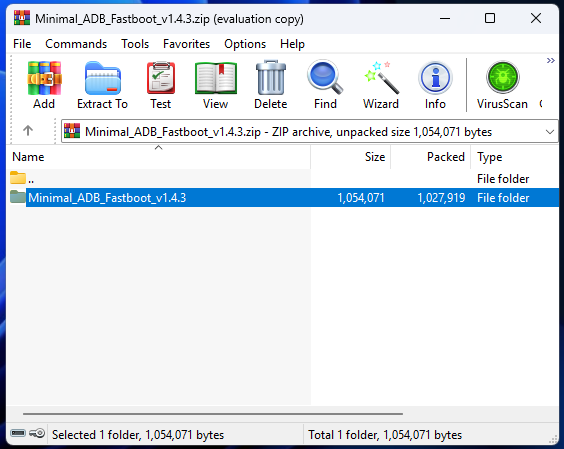
First, download the Minimal ADB and Fastboot Tool setup file from a reliable source. The installer is usually provided as a .exe file.
Step 2: Open the Setup File
After the download is complete, go to your Downloads folder and locate the file named something like Minimal_ADB_Fastboot_Setup.exe.
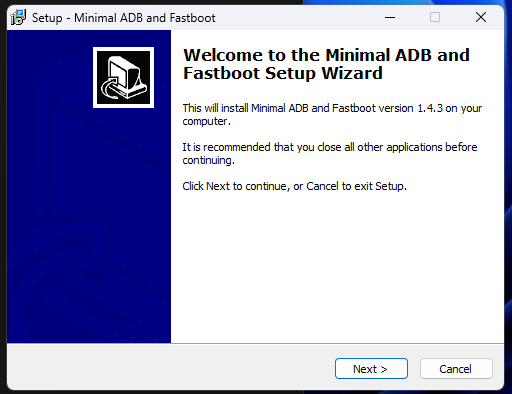
Step 3: Run the Installer
Double-click the setup file to start the installation. If Windows displays a security prompt, click Yes to allow the program to run.
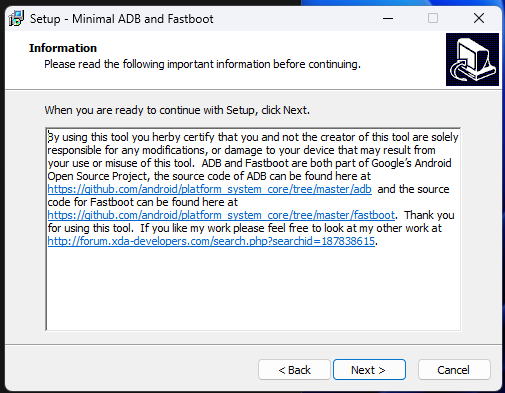
Step 4: Start the Installation Wizard
The installation wizard will open. Click Next to continue with the setup process.
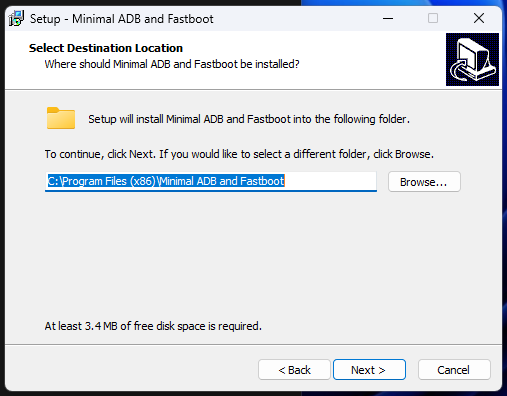
Step 5: Choose Installation Location
Select the folder where you want to install the tool or leave the default installation directory recommended by the installer.
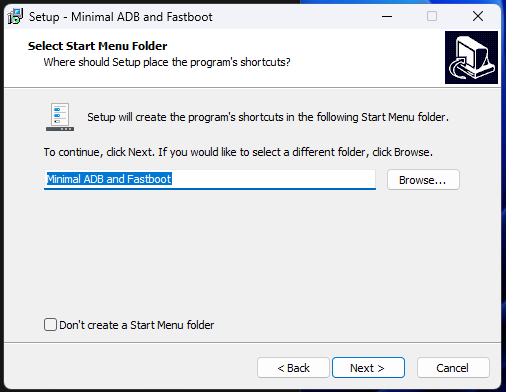
Step 6: Install the Program
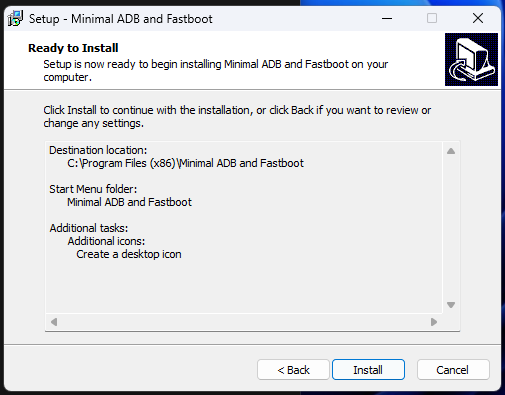
Click Install to begin copying the required ADB and Fastboot files to your computer. This process usually takes only a few seconds.
Step 7: Complete the Installation
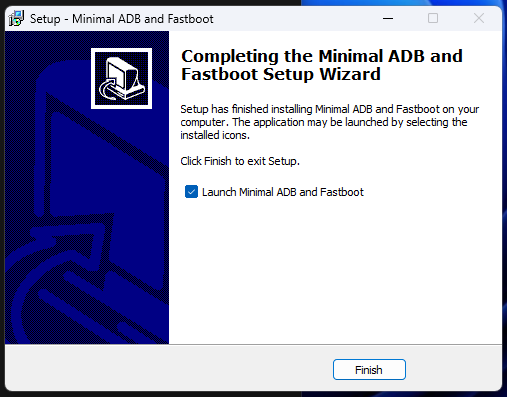
Once the installation is finished, click Finish to close the setup window.
Step 8: Launch Minimal ADB and Fastboot
You can now open the tool from:
- Desktop shortcut
- Start Menu
- Installation folder
A command prompt window will appear where you can run ADB and Fastboot commands.
Step 9: Connect Your Android Device
To start using the tool:
- Enable USB Debugging on your Android device.
- Connect the device to your computer using a USB cable.
- Open the Minimal ADB and Fastboot command window.
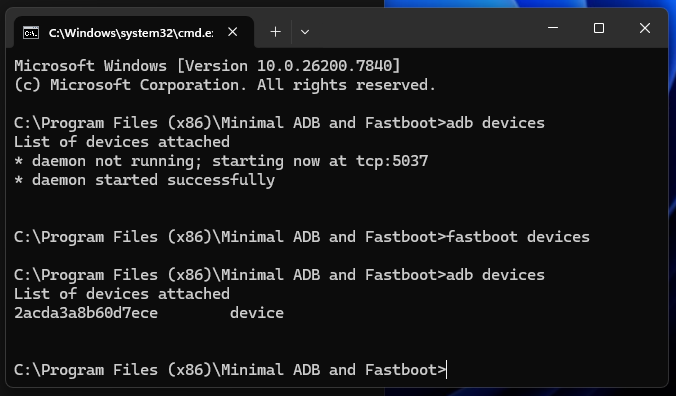
- Run the following command to verify the connection:
adb devices
If your device is detected, it will appear in the list of connected devices.
After completing these steps, you can begin using ADB and Fastboot commands to communicate with your Android device.
How to Use Minimal ADB and Fastboot Tool
Before using the tool, ensure the following:
- USB debugging is enabled on the device
- USB drivers are installed
- Device is connected via USB cable
Basic Steps
- Enable USB debugging in Developer Options.
- Connect the phone to the PC using a USB cable.
- Open the Minimal ADB and Fastboot command window.
- Run the command:
adb devices
If the connection is successful, your device ID will appear.
Useful ADB Commands (Beginners Guide)
These commands are commonly used with the tool.
Check Connected Devices
adb devices
Reboot Device
adb reboot
Reboot to Bootloader
adb reboot bootloader
Install APK
adb install app.apk
Capture Device Log
adb logcat
These commands help users test, debug, and manage Android devices.
Common Errors and Fixes
Many users experience problems when using ADB tools. Below are common issues and solutions.
ADB Device Not Detected
Possible reasons:
- USB debugging disabled
- Missing USB driver
- Faulty USB cable
Fix
- Enable USB debugging
- Install the correct USB driver
- Try another USB port
Unauthorized Device Error
If the device shows unauthorized in ADB.
Fix
Check your phone and allow USB debugging permission.
Fastboot Device Not Showing
Fix
Install proper USB drivers and try running:
fastboot devices
ADB Command Not Recognized
This occurs if the installation path is incorrect.
Fix
Reinstall Minimal ADB and Fastboot Tool.
Tips for Using ADB and Fastboot Safely
To avoid problems while using command tools:
- Use original USB cables
- Verify commands before executing
- Avoid running unknown scripts
- Keep drivers updated
Understanding commands before running them helps prevent device errors.
Is Minimal ADB and Fastboot Tool Safe?
Minimal ADB and Fastboot Tool itself is safe software used by developers and technicians.
However, since it allows direct interaction with Android systems, users should:
- Run only trusted commands
- Download the tool from reliable sources
- Avoid modifying system files unnecessarily
Responsible usage ensures device stability.
Frequently Asked Questions (FAQs)
What is Minimal ADB and Fastboot Tool used for?
It allows computers to communicate with Android devices using ADB and Fastboot commands.
Do I need the Android SDK to use this tool?
No. This tool includes the essential components needed to run ADB and Fastboot commands.
Why is my device not detected by ADB?
This usually happens when USB debugging is disabled or drivers are missing.
Does Minimal ADB and Fastboot work on macOS?
No. The standard Minimal ADB package is designed mainly for Windows systems.
Can beginners use Minimal ADB and Fastboot Tool?
Yes, but users should have basic knowledge of command-line instructions.
Is the tool free to download?
Yes, Minimal ADB and Fastboot Tool is free software.
Final Thoughts
Minimal ADB and Fastboot Tool provides a quick and efficient way to interact with Android devices without installing the complete Android development environment.
Its lightweight design, easy installation, and command-line functionality make it an essential tool for developers, technicians, and advanced Android users.
For anyone who regularly performs device diagnostics, debugging, or system communication, this tool offers a simple and powerful solution.