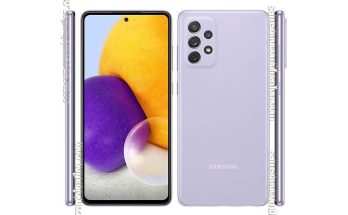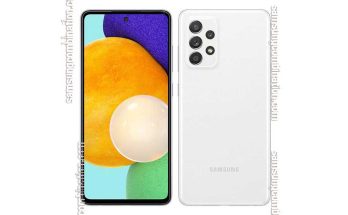
Samsung USB Driver is an essential software package developed to allow Windows computers to properly detect and communicate with Samsung smartphones and tablets.
Without the correct driver installed, a Samsung device may fail to connect, appear as an unknown device, or not allow file transfers when connected through a USB cable.
By installing the Samsung USB driver, your computer can recognize the device correctly, enabling features like:
- File transfer between phone and PC
- Device management through Windows
- Communication with Android development tools
- Stable USB connectivity for Samsung devices
This driver acts as a communication bridge between your Samsung mobile device and Windows operating system.
Table of Contents
What is Samsung USB Driver?
Samsung USB Driver is a Windows software component that allows a computer to identify Samsung Android devices connected through USB.
When installed, it enables the system to establish a proper communication channel so the device can perform tasks like:
- Media transfer
- Data backup
- Firmware flashing
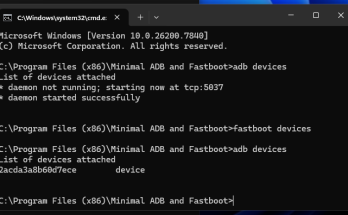
- Debugging with Android tools
- Device management
Without the driver, Windows may not recognize the phone or may detect it incorrectly.
Why Samsung USB Driver is Important
Installing the driver provides several advantages:
Proper Device Recognition
Your computer can identify Samsung smartphones and tablets correctly.
Smooth File Transfer
Move photos, videos, documents, and other files between devices without connection issues.
Android Development Support
Necessary for developers using Android debugging tools.
Firmware and Software Tools
Some Samsung service tools require proper USB drivers.
Stable USB Connectivity
Prevents random disconnections or device detection failures.
Supported Samsung Devices
Samsung USB Driver supports most Samsung Android devices, including:
Galaxy S Series
- Galaxy S24 / S23 / S22 / S21
- Galaxy S20 / S10 / S9
- Galaxy S8 / S7 and earlier
Galaxy Note Series
- Galaxy Note 20
- Galaxy Note 10
- Galaxy Note 9
- Galaxy Note 8
Galaxy A Series
- Galaxy A73 / A72 / A71
- Galaxy A54 / A53 / A52
- Galaxy A51 / A50
Galaxy M Series
- Galaxy M54
- Galaxy M34
- Galaxy M33
- Galaxy M31
Galaxy Tablets
- Galaxy Tab S series
- Galaxy Tab A series
- Galaxy Tab Active series
The driver works with Android devices from Android 4.0 to the latest Android versions.
Supported Windows Versions
Samsung USB Driver works on:
- Windows 11
- Windows 10
- Windows 8 / 8.1
- Windows 7
Both 32-bit and 64-bit systems are supported.
Download Samsung USB Driver
Below is the latest driver package for Samsung devices.
File Information
- File Name: Samsung_USB_Driver.exe
- File Size: ~35 MB
- Compatibility: Windows 7 / 8 / 10 / 11
- Developer: Samsung Electronics
Download Link:
Download Samsung USB Driver (Latest Version)
(Add your download button here to increase CTR and ad impressions)
How to Install Samsung USB Driver (Step-by-Step Guide)
Installing the Samsung USB Driver on a Windows computer is quick and straightforward. Follow the steps below to set it up properly so your Samsung device can connect without detection or file transfer issues.
Step 1: Download the Driver File
First, download the latest Samsung USB Driver installation package from a trusted source. The file is usually provided in .exe format.
Step 2: Locate the Downloaded File
Once the download is complete, open the Downloads folder on your computer and find the file named something similar to Samsung_USB_Driver.exe.
Step 3: Run the Installer
Double-click the setup file to launch the installer. If Windows asks for permission, click Yes to allow the program to run.
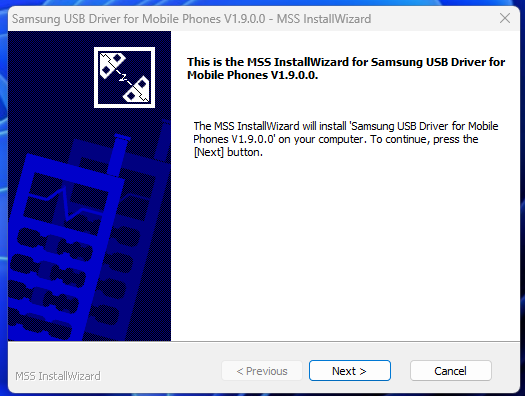
Step 4: Start the Installation
The Samsung USB Driver setup wizard will open. Click Next to begin the installation process.
Step 5: Accept the License Agreement
Read the license terms and proceed by selecting I Agree or Next, depending on the installer version.
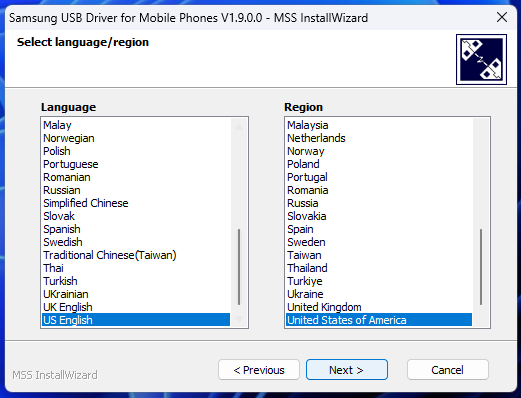
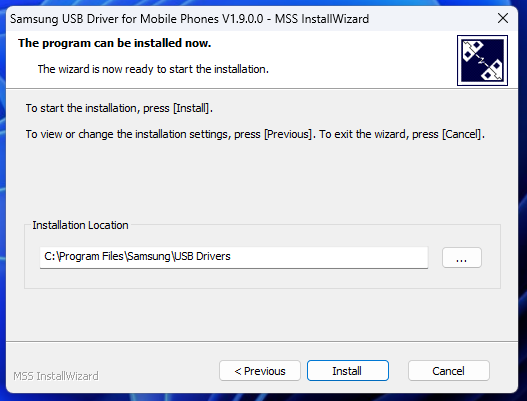
Step 6: Install the Driver
Click Install and wait while the driver files are copied to your system. This process usually takes only a few seconds.
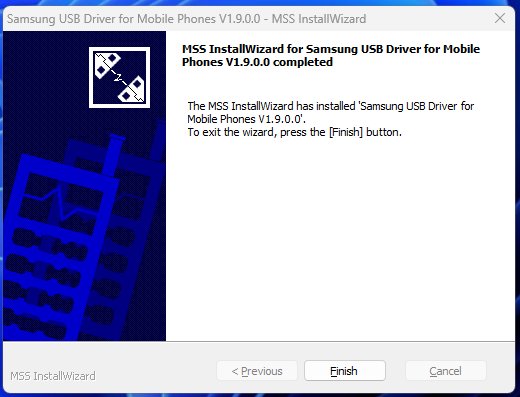
Step 7: Finish the Installation
After the installation is complete, click Finish to close the setup window.
Step 8: Restart Your Computer
Although not always required, restarting your PC helps ensure the driver loads correctly.
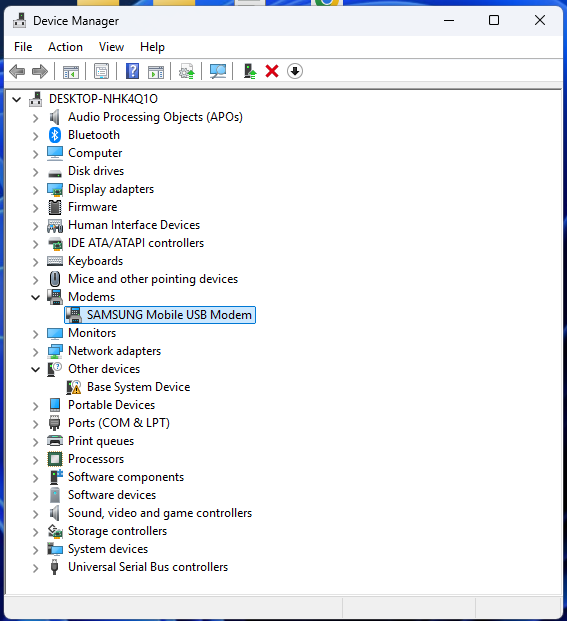
Step 9: Connect Your Samsung Device
Now connect your Samsung smartphone or tablet to the computer using a USB cable. Your system should automatically recognize the device.
Step 10: Select File Transfer Mode
On your phone, choose File Transfer (MTP) from the USB options so the computer can access the device storage.
Once these steps are completed, your Samsung device should appear in File Explorer, allowing you to transfer files and manage data easily.
How to Connect Samsung Phone to PC After Installing Driver
- Connect your Samsung phone to the PC using a USB cable
- Unlock your phone
- Select File Transfer / MTP mode
- Open This PC on Windows
- Access the phone storage
You can now transfer files between your phone and computer.
Common Problems and Fixes
Many users face connection issues while using Samsung USB drivers. Below are common problems and solutions.
Samsung Phone Not Detected by PC
Possible causes:
- USB driver not installed properly
- Faulty USB cable
- USB debugging disabled
Fix
- Reinstall Samsung USB driver
- Try another USB port
- Enable USB debugging in developer options
Device Showing as Unknown USB Device
Fix
- Open Device Manager
- Find unknown device
- Right click
- Update driver
- Select Samsung USB driver
Phone Charging But Not Showing Storage
Fix
On your phone select:
USB Options → File Transfer (MTP)
Samsung USB Driver Installation Failed
Fix
- Run installer as Administrator
- Disable antivirus temporarily
- Restart PC and install again
Tips for Stable USB Connection
To avoid connection problems:
- Use original Samsung USB cable
- Avoid using USB hubs
- Connect directly to PC USB port
- Install latest USB driver version
- Enable file transfer mode on phone
These steps help maintain a stable connection between phone and computer.
Is Samsung USB Driver Safe?
Samsung USB Driver is official software used to connect Samsung mobile devices with Windows computers.
When downloaded from trusted sources, it is safe and secure to install.
Always ensure you install the latest driver version for better compatibility.
Frequently Asked Questions (FAQs)
Do I need Samsung USB Driver for file transfer?
Yes, installing the driver helps Windows properly detect the device and enables smooth file transfer.
Why is my Samsung phone not connecting to PC?
Possible reasons include:
- Missing USB driver
- Faulty USB cable
- Incorrect connection mode
Can Samsung USB Driver work on macOS?
No. The official driver package is mainly designed for Windows systems.
Does Samsung USB Driver support all Samsung phones?
Most Samsung smartphones and tablets are supported, but compatibility depends on the driver version.
Is Samsung USB Driver free?
Yes, it is available as a free software package.
Do I need to reinstall the driver after Android update?
Usually not, but installing the latest driver version can improve compatibility.
Final Thoughts
Samsung USB Driver is an important tool for anyone who connects Samsung smartphones or tablets to a Windows computer.
It ensures proper device detection, stable file transfer, and smooth communication between devices.
If your Samsung phone is not recognized by the computer, installing or updating the USB driver often solves the issue quickly.