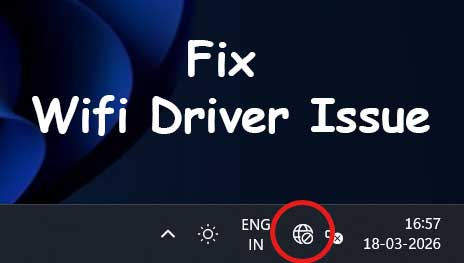
If your computer suddenly cannot connect to WiFi, shows no available networks, or displays errors like “No Internet Access,” the problem is often related to the WiFi driver. The WiFi driver allows your operating system to communicate with the wireless network adapter, enabling internet connectivity.
When the driver becomes outdated, corrupted, or missing, your system may fail to detect wireless networks or connect properly. The good news is that most WiFi driver issues can be resolved easily by following a few troubleshooting steps.
Table of Contents
Common Signs of WiFi Driver Problems
You may be facing a driver-related issue if you notice:
- WiFi option missing from settings
- No wireless networks detected
- “Network adapter not found” error
- Frequent disconnections
- Limited or no internet access
What Causes WiFi Driver Issues?
Several factors can lead to WiFi driver problems:
- Outdated or incompatible drivers
- Corrupted system files
- Windows updates affecting drivers
- Disabled network adapter
- Incorrect network settings
How to Fix WiFi Driver Not Working (Step-by-Step)
Follow these solutions one by one until your WiFi starts working again.
Fix 1: Restart Your Computer and Router
Before trying advanced fixes, restart your system and router.
Steps:
- Turn off your computer
- Restart your WiFi router
- Turn your computer back on
- Check if WiFi is working
Fix 2: Enable WiFi Adapter
Sometimes the wireless adapter is disabled.
Steps:
- Press Windows + R, type
ncpa.cpl, and press Enter - Look for your WiFi adapter
- If disabled, right-click and select Enable
Fix 3: Update WiFi Driver
Updating the driver can fix compatibility issues.
Steps:
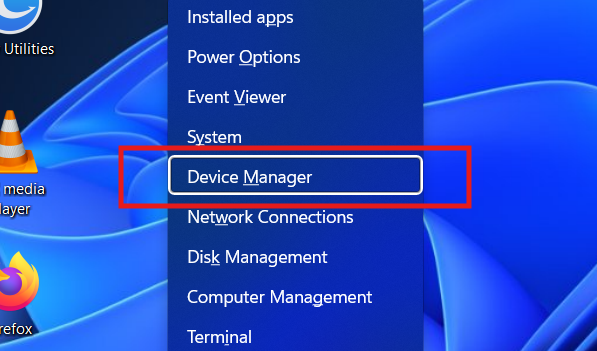
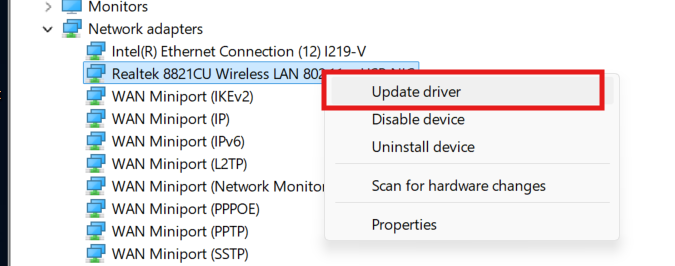
- Press Windows + X → Device Manager
- Expand Network adapters
- Right-click your WiFi adapter
- Select Update driver
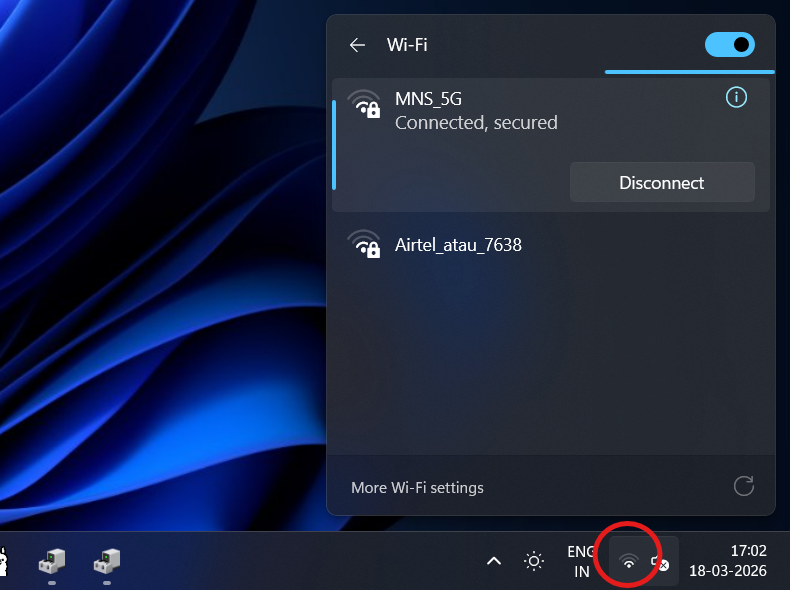
- Choose Search automatically for drivers
Fix 4: Reinstall WiFi Driver
If updating doesn’t work, reinstall the driver.
Steps:
- Open Device Manager
- Expand Network adapters
- Right-click your WiFi adapter
- Click Uninstall device
- Restart your computer
- Windows will reinstall the driver automatically
Fix 5: Delete Driver and Refresh Device Manager
This method forces Windows to detect your WiFi hardware again.
Steps:
- Open Device Manager
- Expand Network adapters
- Right-click your WiFi driver
- Click Uninstall device

- Check “Delete the driver software for this device” (if available)
- Click Uninstall
- Now click Action → Scan for hardware changes
- Windows will reinstall the driver
Fix 6: Run Network Troubleshooter
Windows has a built-in tool to fix network problems.
Steps:
- Go to Settings → System → Troubleshoot
- Click Other troubleshooters
- Run Network Adapter
- Follow on-screen instructions
Fix 7: Reset Network Settings
Resetting network settings can fix deeper issues.
Steps:
- Go to Settings → Network & Internet
- Click Advanced network settings
- Select Network reset
- Restart your computer
Fix 8: Install Driver from Official Website
If Windows cannot install the driver automatically, download it manually from your manufacturer.
Common Manufacturers:
- Intel Wireless Drivers
- Realtek WiFi Drivers
- Qualcomm Atheros Drivers
- Broadcom WiFi Drivers
Search using your laptop or adapter model and download from the official support page.
Common WiFi Driver Problems and Solutions
WiFi Not Showing Networks
- Update or reinstall driver
- Turn WiFi ON from settings
- Restart router
WiFi Adapter Missing
- Scan for hardware changes
- Install driver manually
- Check BIOS settings
WiFi Keeps Disconnecting
- Update driver
- Disable power saving mode
- Reset network settings
Limited Internet Access
- Restart router
- Reset IP configuration
- Update driver
Tips to Avoid WiFi Driver Issues
- Keep drivers updated regularly
- Avoid installing drivers from unknown sources
- Install Windows updates carefully
- Restart your system after updates
Frequently Asked Questions (FAQs)
1. Why is my WiFi driver not working?
It may be outdated, corrupted, or incompatible with your Windows version.
2. How do I reinstall my WiFi driver?
Uninstall it from Device Manager and restart your PC to reinstall automatically.
3. Is it safe to download drivers manually?
Yes, but only from official manufacturer websites.
4. What if WiFi adapter is not showing?
Try scanning for hardware changes or reinstalling the driver.
5. Can Windows fix WiFi issues automatically?
Yes, the built-in troubleshooter can resolve many common problems.
6. Why does my WiFi keep disconnecting?
It may be due to outdated drivers, power settings, or network issues.
7. Do I need internet to install WiFi driver?
Not always. You can download it on another device and transfer via USB.
8. Which wifi driver is best for my laptop?
Use the driver provided by your laptop manufacturer or chipset provider.
Conclusion
WiFi driver issues on Windows 10 and 11 are common but usually easy to fix. By following the steps above, you can restore your internet connection and ensure stable performance.
Always keep your drivers updated and use official sources for downloads. With proper maintenance, your WiFi should work smoothly without interruptions.