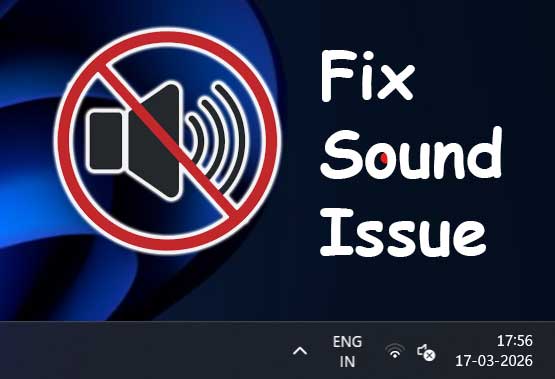
If your computer suddenly has no sound, shows audio errors, or fails to detect speakers or headphones, the problem is often related to the sound driver. Audio drivers act as a bridge between your operating system and hardware, allowing your system to process and output sound correctly.

Whether you are using a laptop or desktop, issues with drivers from manufacturers like Realtek, Intel, or AMD can cause sound to stop working. Fortunately, most audio problems can be fixed with a few simple steps.
Table of Contents
Common Causes of Sound Driver Issues
Before applying fixes, it’s important to understand why the issue occurs. Some common causes include:
- Corrupted or outdated audio drivers
- Windows update conflicts
- Disabled audio services
- Incorrect playback device settings
- Missing or incompatible drivers
How to Fix Sound Driver Not Working (Step-by-Step)

Follow these methods one by one until your audio starts working again.
Fix 1: Delete Driver and Refresh Device Manager (Very Effective)
This method forces Windows to re-detect your audio hardware and install a fresh driver.
Steps:
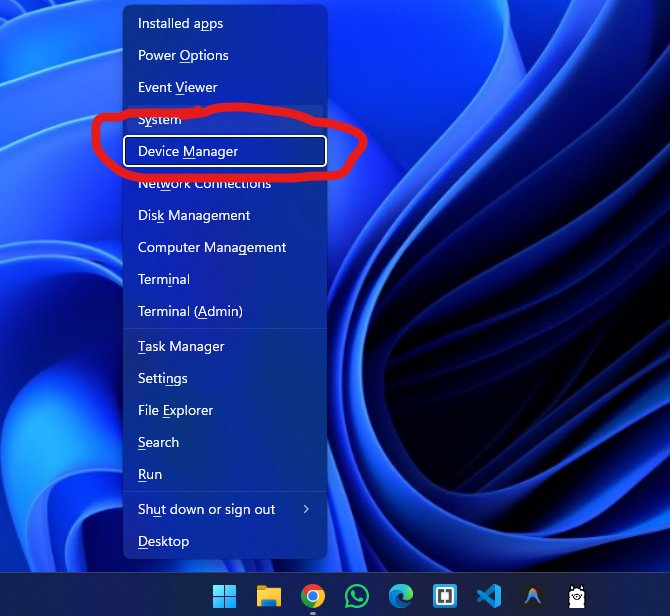
- Press Windows + X → Device Manager
- Expand Sound, video and game controllers
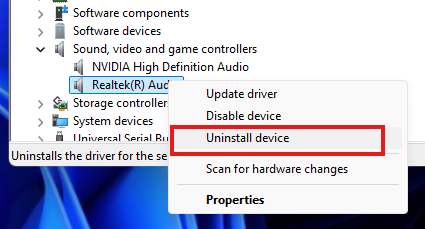
- Right-click your audio device (e.g., Realtek Audio)
- Click Uninstall device
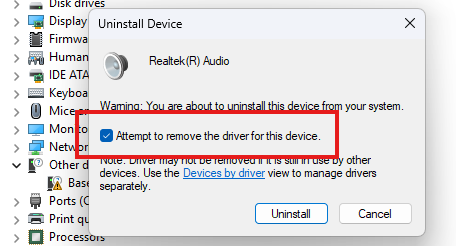
- If available, check “Delete the driver software for this device”
- Click Uninstall
- Now, at the top menu, click Action → Scan for hardware changes
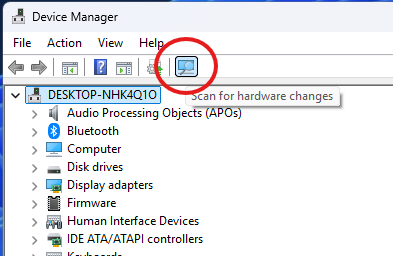
- Windows will automatically detect and reinstall the audio driver
👉 This fix is especially useful when:
- driver is corrupted
- device not detected
- sound suddenly stopped working
Fix 2: Restart Windows Audio Services
Sometimes audio services stop running in the background.
Steps:
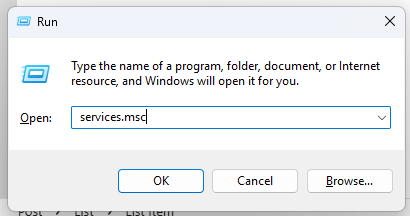
- Press Windows + R, type
services.msc, and press Enter
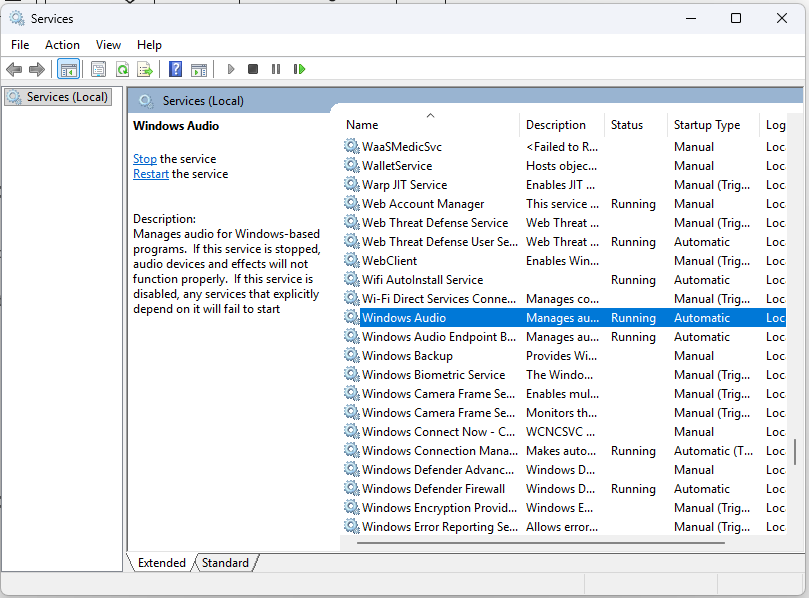
- Find Windows Audio
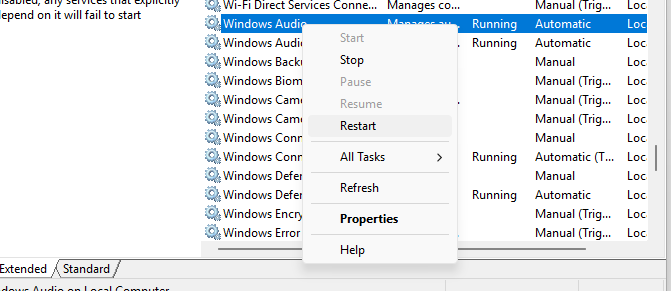
- Right-click and click Restart
- Also restart Windows Audio Endpoint Builder
Fix 3: Check Playback Device
Your system might be using the wrong output device.
Steps:
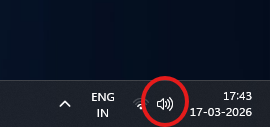
- Right-click the sound icon in the taskbar
- Select Sounds → Playback tab
- Choose your speaker or headphone device
- Click Set Default
Fix 4: Update Sound Driver
Updating the driver often resolves compatibility issues.
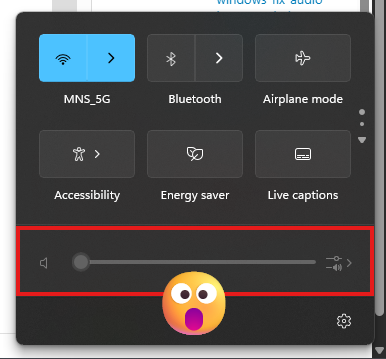
Steps:
- Press Windows + X → Device Manager
- Expand Sound, video and game controllers
- Right-click your audio device
- Click Update driver
- Select Search automatically for drivers
Fix 5: Reinstall Audio Driver
If updating doesn’t work, reinstall the driver.
Steps:
- Open Device Manager
- Right-click your audio device
- Click Uninstall device
- Restart your PC
- Windows will reinstall the driver automatically
Fix 6: Run Windows Troubleshooter
Windows has a built-in tool for audio issues.
Steps:
- Go to Settings → System → Troubleshoot
- Click Other troubleshooters
- Run Playing Audio
Download Official Sound Drivers
Always download drivers from official sources to avoid compatibility or security issues.
Realtek Audio Driver
- Visit the official Realtek website
- Search for High Definition Audio Codecs
- Download the latest version for your Windows system
Intel Audio Driver
- Visit Intel’s official support site
- Use the Driver & Support Assistant tool
- Automatically detect and install drivers
AMD Audio Driver
- Go to AMD’s official drivers page
- Select your graphics card or chipset
- Download the recommended audio driver package
Common Sound Driver Problems and Solutions
No Sound After Windows Update
- Reinstall the audio driver
- Roll back to a previous version if needed
Audio Device Not Detected
- Check BIOS settings
- Ensure audio is enabled
- Update chipset drivers
Crackling or Distorted Sound
- Update driver
- Disable audio enhancements
- Check speaker or headphone connection
Headphones Not Working
- Set headphones as default device
- Check audio jack or USB port
- Update drivers
Additional Tips
- Keep your Windows system updated
- Avoid installing drivers from unknown websites
- Restart your system after installing drivers
- Use official tools whenever possible
Frequently Asked Questions (FAQs)
1. Why is my sound driver not working?
It may be due to outdated drivers, incorrect settings, or system conflicts.
2. Is it safe to download drivers manually?
Yes, but only from official manufacturer websites.
3. Can Windows install drivers automatically?
Yes, Windows can detect and install most drivers automatically.
4. How do I know which driver I need?
Check Device Manager to identify your audio hardware.
5. Should I uninstall old drivers?
Yes, if they are corrupted or causing issues.
6. What if sound still doesn’t work?
Try multiple fixes or check for hardware issues.
Conclusion
Sound driver issues on Windows are common but usually easy to fix. Whether you are using Realtek, Intel, or AMD audio drivers, following the correct troubleshooting steps can restore your audio quickly.
Always use official sources for downloads and keep your drivers updated to avoid future issues. With proper setup and maintenance, your system audio should work smoothly without interruptions.